 InvoiceHop
AI connectors (MCP)
Let Claude, ChatGPT or another AI assistant find invoices, chase unpaid ones, correct, email and export documents.
Updated
InvoiceHop has an MCP server, the standard way AI assistants connect to apps. Once connected, you can ask your assistant things like "which invoices are overdue? Send them a reminder", "send my accountant last month's invoices as one PDF" or "the customer of order #1042 gave their VAT number, correct the invoice". Included in the Growth plan.
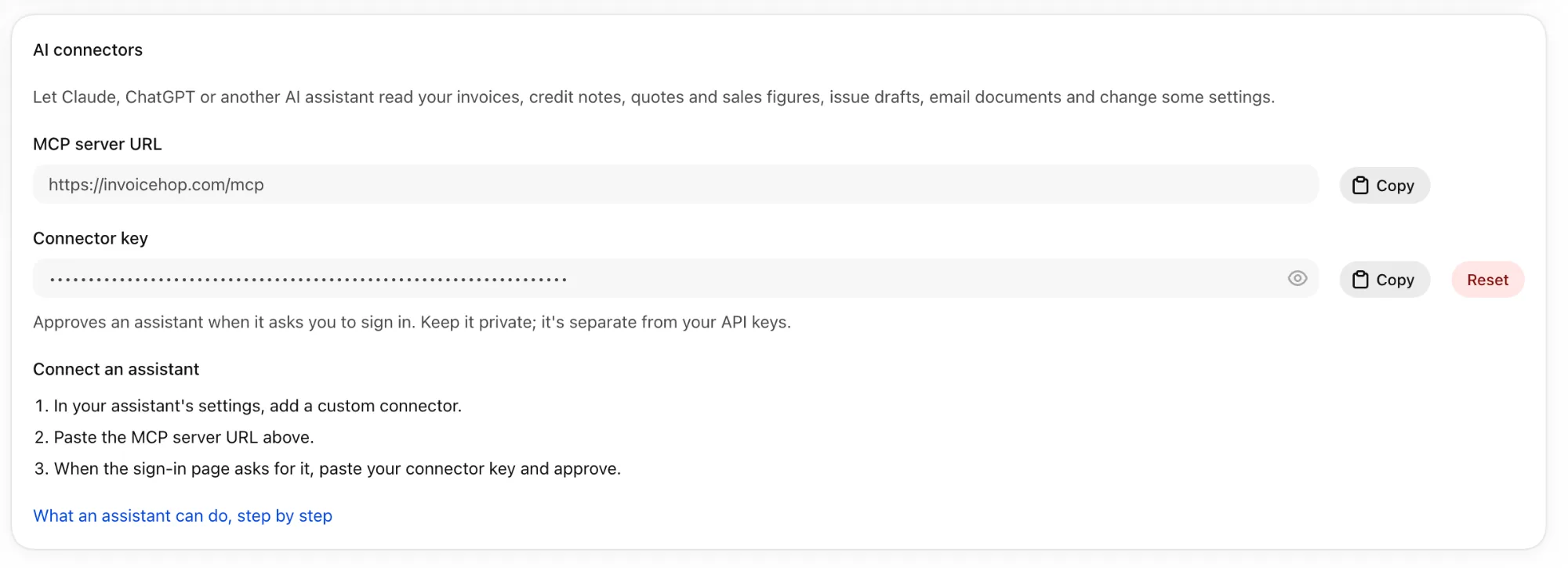
Connect an assistant
- In InvoiceHop, open Settings → API & AI connectors. Under AI connectors, copy the MCP server URL.
- In your assistant's settings (in Claude and ChatGPT: Settings → Connectors), add a custom connector and paste the URL.
- The assistant opens an InvoiceHop sign-in page. Copy the Connector key from the same settings card, paste it and click Approve. Tick Read only first if the assistant should only read and download, never act.
Tools that can send a header can use the connector key directly instead: Authorization: Bearer ihmcp.…. The key itself always has full access.
What the assistant can read
- Invoices and credit notes: search by customer, number, order, status, paid or unpaid and issue dates, or every document of one order.
- A document in full, with a link to download its PDF (valid for an hour) and its e-invoice status.
- Unpaid invoices, the most overdue first, with days overdue and the reminders already sent.
- Sales for a period: invoiced, credited and net, VAT by rate and by country, paid and unpaid.
- Quotes and their status, your plan and how many invoices you've used this month, your invoicing settings and templates.
- Download links, valid for an hour, to the documents of a period as one PDF, a ZIP, CSV or Excel, or the FEC or DATEV journal.
What it can do (unless approved as read only)
- Issue a draft invoice, change its line names, note or date of supply first, and email documents.
- Send a payment reminder or a statement of account.
- Credit an invoice in full, or credit and re-issue it after changing the buyer's company, VAT number, company ID or PO number.
- Make a quote from a draft order and email it.
- Send an e-invoice again.
- Change some invoicing settings (when invoices are issued, automatic emails and credit notes, orders kept as drafts) and switch templates.
Assistants are told to ask you before they issue, send, credit or change anything. Issued documents can't be edited, as in the app: they're corrected with credit notes. Everything an assistant does to a document is noted on its timeline as Done by an AI assistant, so you can always see what it did.
Sign an assistant out
Click Reset next to the connector key. Every connected assistant is signed out at once, and connecting again needs the new key.