 InvoiceHop
Templates and design
Pick a design for invoices, credit notes, packing slips and quotes, make it yours and add a QR code.
Updated
InvoiceHop has twenty-two templates. Invoices, credit notes, packing slips and quotes can each use a different one: on Templates, pick the document type at the top, then click Select on a design. Packing slips and quotes use your invoice design until you pick one for them.
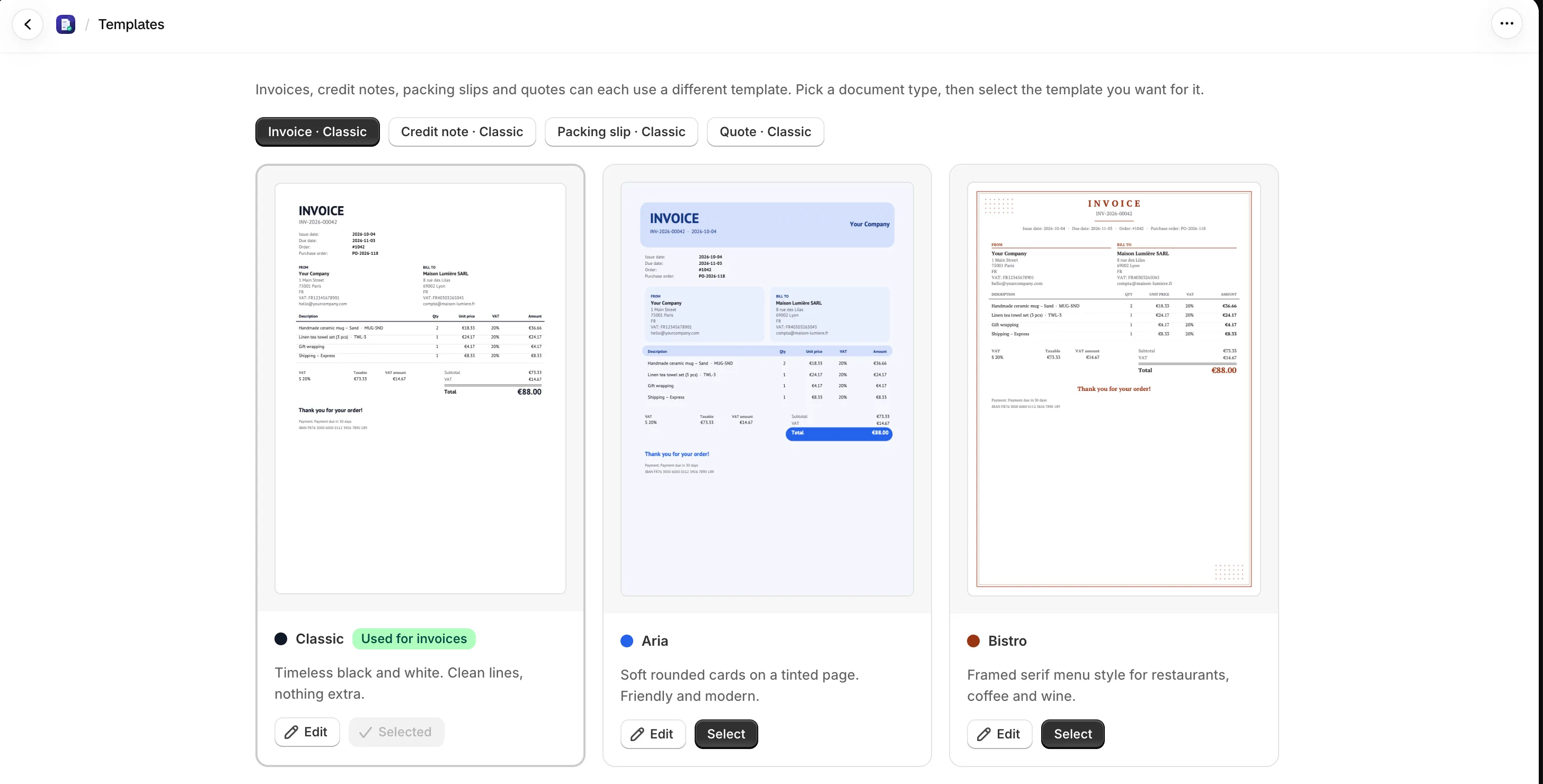
Classic, Headline, Trio, Folio, Envelope and Atelier are in black and white; the others bring color. A few to know:
- Headline: an oversized title over a single rule, the logo centered above it.
- Trio: your business, the buyer and the delivery address side by side, between two fine rules.
- Folio: spaced capitals, your details on the right and the order details in a side column.
- Envelope: for invoices you post. The customer's address sits where a window envelope shows it (20 mm from the left, 27 mm from the top), with your return address and fold marks.
Receipt formats
Thermal, Kiosk and Till print on narrow 80 mm receipt paper, for receipt printers, pickup orders and market stalls. The page is exactly as long as the receipt.
Customize a template
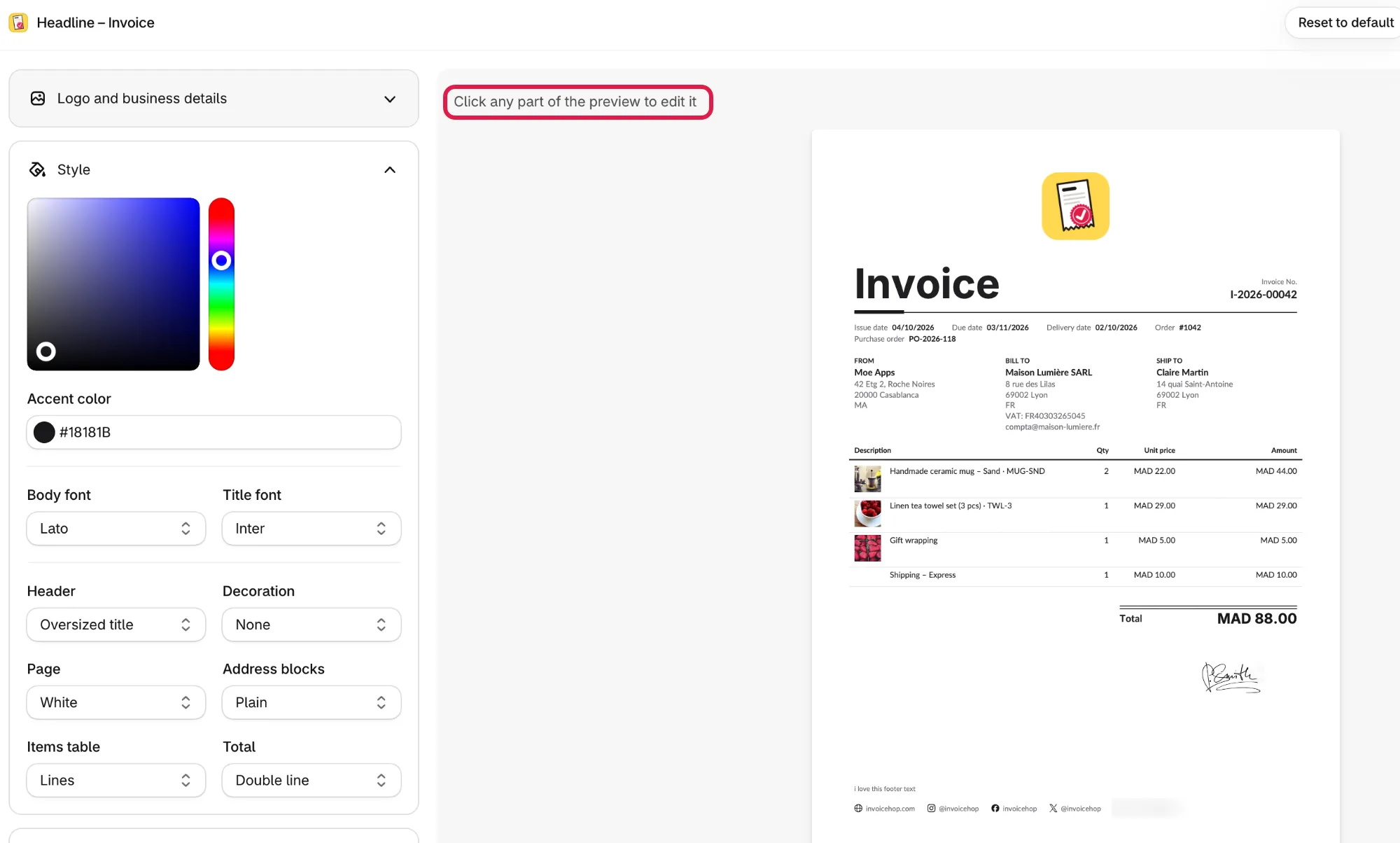
Click Edit on a template to change the settings below. The preview shows the whole page and stays in view as you edit: click any part of it, like the logo, the items or the footer, to open its settings. Until you add your logo, the preview shows the InvoiceHop logo as a placeholder; it's never printed on your documents.
What you print is the same on every template: when you save, the details you turned on or off and the texts you changed (titles, thank-you message, footer text, captions) are copied to your other templates, so switching design never brings back a field or loses a text. Colors, fonts, layout, the footer bar and the order at the bottom stay each template's own.
- Logo and business details: show or hide your logo.
- Style: accent color; body and title fonts (18 free fonts in sans serif, serif and monospace, plus 4 display fonts for titles); header style (including Oversized title, Three columns, Side column and Envelope window), decoration, page style, address blocks, items table, and total.
- Document details: the document's title, order number, PO number, due date, delivery date and QR code.
- Customer: email, VAT number, company ID and shipping address.
- Items and totals: product images, SKU, unit price, VAT rate column and VAT breakdown.
- Signature: prints your signature image under the totals. Upload it once in Settings → Business.
- Payment: payment terms, and bank details when they're filled in.
- Footer: your thank-you message, the footer text, and the legal mentions. The footer text is printed at the bottom of every document that uses the template, packing slips included. At the end, the order of the blocks at the bottom of the page (payment terms, bank details, legal mentions, footer text and social links): drag a block, or use its arrows. Website and social links come last until you move them.
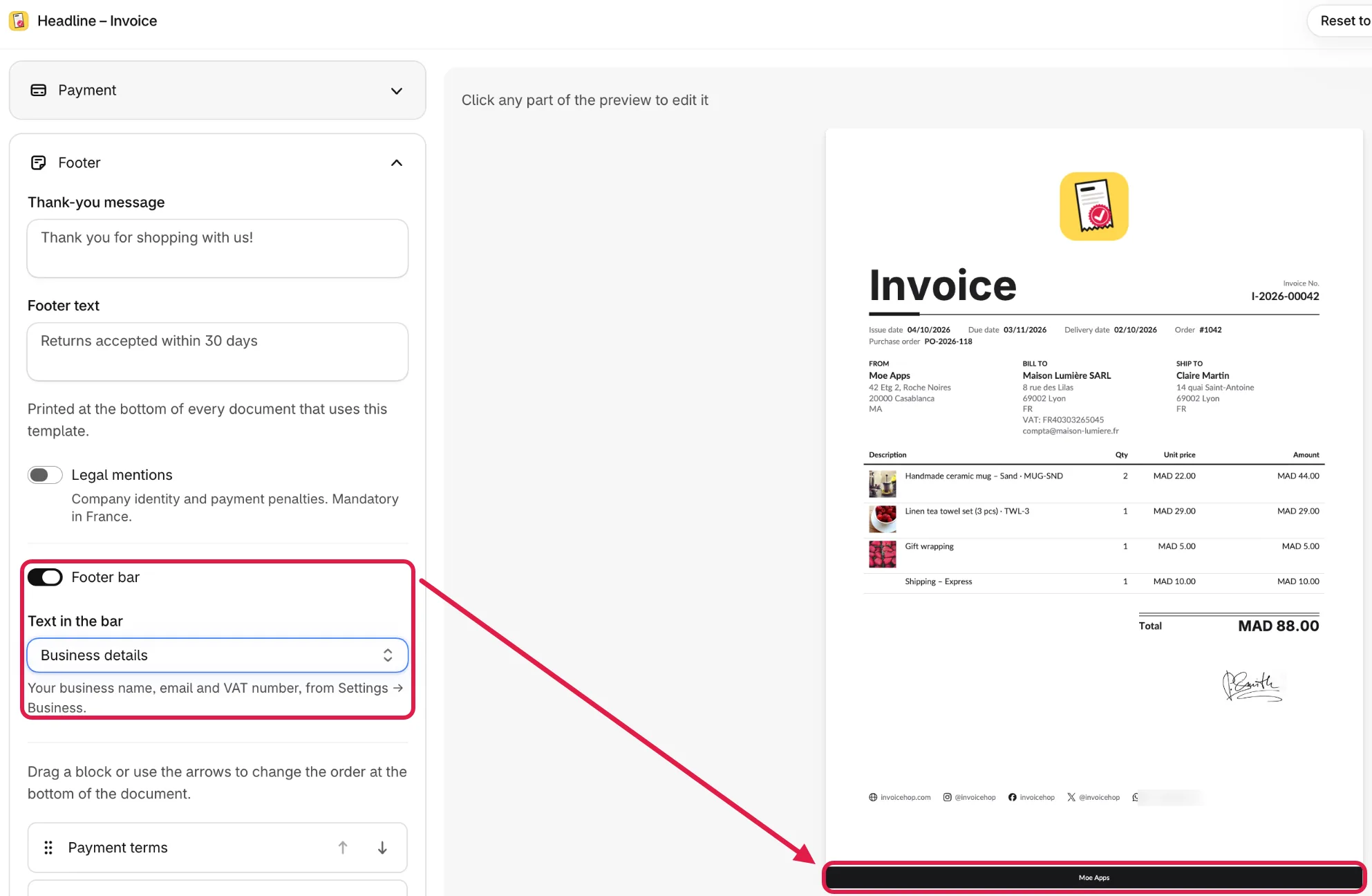
- Footer bar, in the same section: a colored bar along the bottom edge. It shows your business name, email and VAT number, or, with Text in the bar set to Footer text, your footer text on one line instead of above it.
- Website and social media: which links are printed, as icons or with their text.
Your company name, address, VAT number and email are shared by all templates: edit them in Settings → Business, where the Show switch next to each one decides if it's printed. Your VAT status and bank account are there too.
QR code on quotes
Quotes can carry a QR code that opens the page to accept the quote and pay online. Turn it on with QR code to accept the quote in the quote template's Document details section. QR code text is printed above the code: it starts as "Accept and pay online", and you can change it, or clear it to print the QR code alone.